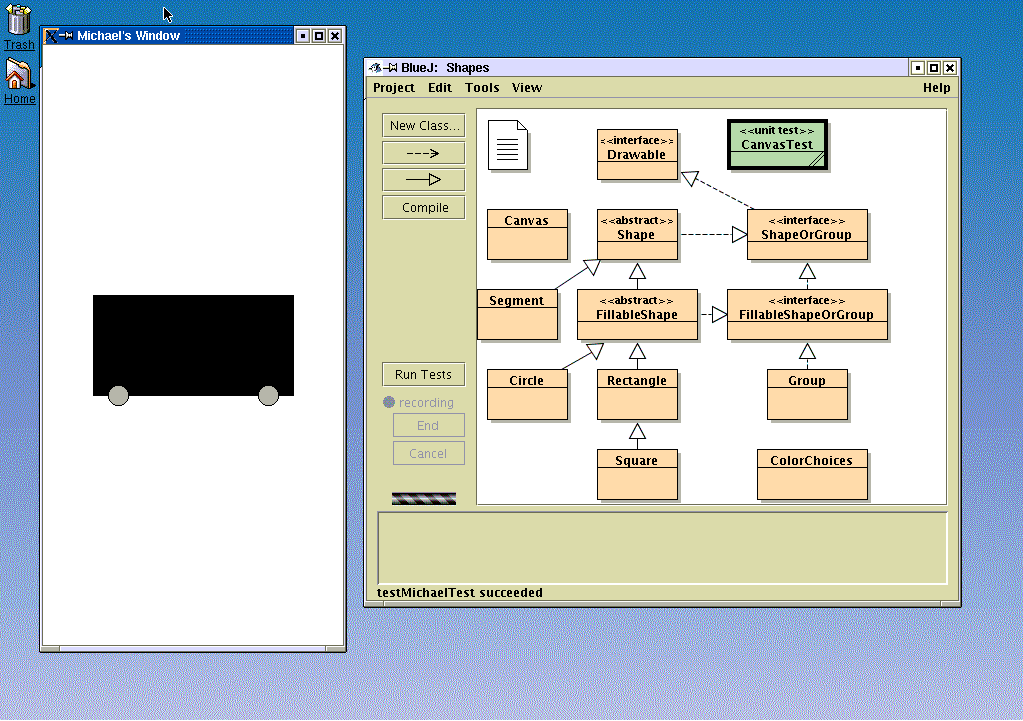
We will start by playing with some software developed specifically for this course, which we will refer to as Shape for the time being (eventually, we will have a package csa120 and will refer to this part of the package as csa120.shape) A copy of these classes has been placed in each student's home directory on patel2.
This package will provide us with some very basic graphical primitives so that we can create drawings as well as animations. A subset of the full package is described as a UML Diagram (though this subset does not encorporate the concept of groups, discussed below). You may wish to become familiar with the formal documentation for the package. This describes all of the available Classes, including the variables and methods associated with each class.
We will highlight three core classes of this package.
This is a superclass for a variety of common shapes, such as rectangles, squares, circles and line segments. These shapes allow you to control various common drawing attributes, such as the thickness and color of lines, whether shapes should be drawn as an outline or filled, and the position and size of the shapes.
The canvas serves as a drawing surface. Shapes can be added and removed from the canvas as you wish. However, the actual drawing is not automatically updated as you add shapes or alter the shapes which were added earlier. Rather, the drawing of the canvas is only updated when you explicitly call its refresh method.
By making multiple changes to the underlying shapes between calls to refresh, we can create a series of images which form a (simple) animation. Each call to refresh will be treated as a new frame of the animation.
A Group is an intermediate class which allows us to treat a collection of shapes as a single group. Various shapes can be added directly to a group rather than directly to a canvas. Then, that group can be added to the canvas for viewing.
Groups support all of the generic methods for altering attributes of Shapes, such as move, setBorderColor and so on. When a request is made to move a group, that request will automatically have the effect of moving all of the underlying contents of the group. Therefore, we find an advantage in using groups when we have a collection of shapes that should be treated similarly (e.g., a variety of shapes which make an image of a house in a larger scence).
In fact, groups can even contain other groups, offering a way to better organize components of a larger image.
BlueJ offers us an interactive way to create and experiment with objects. For classes in your project, you can instantiate (i.e., create) an object from a class as follows. When you "right-click" the mouse (or what we will call "apple-click" on the Macintosh's), a popup menu appears. At the top of that menu, you will see one or more constructors for the given class. A constructor will always have a method name identical to that of the Class, and it may specify one or more parameters which are expected. (Note: if the class is abstract or an interface, than it can not be instantiated and no such constructors will be listed). If you select a constructor, and specify appropriate parameters if expected, then an object of that class will be created and added to the bottom of the screen (the "workbench") and assigned an identifier specific to that object. For example, if you instantiate an object from class Rectangle, it might be assigned an identifier "rectangl1" by BlueJ.
Once an object is on the workbench, you can call any of its methods through another popup menu. You will find a listing of all methods directly implemented by that class, as well as additional popup menus listing methods which are included due to a superclass of the current class. For example, if you create a Rectangle in our package, you will find methods such as getWidth directly, and additional methods inherited from parent classes, such as the method setFillColor inherited from FillableShape, or the method move inherited from Shape. If you invoke a method which requires one or more parameters, then a dialog box will appear in which you specify the desired parameters. If you wish to pass one of your existing workbench objects as a parameter, you can do so by either typing its identifier, or by clicking on the desired object.
Though the interactive manipulation of objects, as discussed above, is convenient at first, we will soon need to transition toward writing true Java programs. To begin this transition, we did the following exercise in class. BlueJ actually will allow you to "record" your interactive manipulations, transcribing them to true Java syntax.
Therefore, we decided to work as a class to design a (very simple) car (see image), while recording our actions. To record your own actions, do the following.
public void testSample()
{
	Canvas canvas1 = new Canvas("My Fravorite Window", 300, 600);
	Rectangle rectangl1 = new Rectangle(200, 100);
	canvas1.add(rectangl1);
	canvas1.refresh();
	rectangl1.move(150, 300);
	canvas1.refresh();
	rectangl1.setFilled(true);
	rectangl1.setFillColor("black");
	canvas1.refresh();
	Circle circle1 = new Circle(10);
	Circle circle2 = new Circle(10);
	circle1.move(75, 350);
	canvas1.refresh();
	canvas1.add(circle1);
	canvas1.add(circle2);
	canvas1.refresh();
	rectangl1.setDepth(10);
	circle1.setFilled(true);
	circle2.setFilled(true);
	circle2.move(225,350);
	canvas1.refresh();
}