You will need an Internet connection, as the software is available on a webiste maintained by the publisher. The two labs we will be interested in using are:
Both labs are based on the same software. The only difference is the discussion in the associated prose.
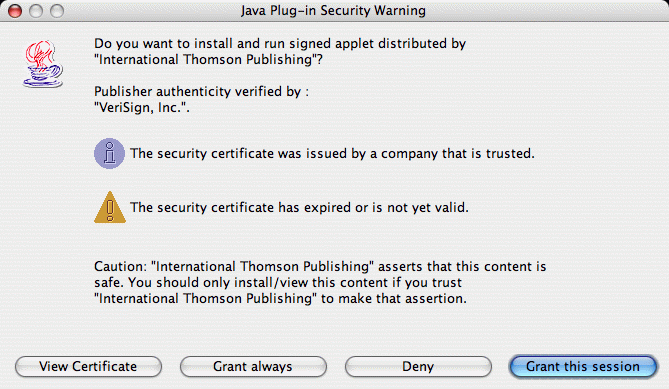
Once you are viewing the main page for the textbook's software, you will find their labs organized by chapter. You can select the lab you wish to run. For many of the labs, when you run the software for the very first time, a window will pop up labeled with a title such as "Security Warning" and it will ask you whether or not you wish to "trust" the software. When asked, please grant your permission; we will explain why in the next section.
The precise appearance of this window depends on your browser and
operating system, but one such form is shown here:
The software gives you the ability to save your work to a file, and to load those files at a later time. This is a very useful feature, as it allows you to play with the software and save what you did for another time. Also, this will let you save work to a file which can be submitted for the assignment. Also, this allows you to load files which we have created (see next section).
There is one catch to using the save/load features, because the software will be running from within your web browser. For security reasons, software running in a web browser is not allowed to access files on your computer without explicit permission. This is to help protect against viruses or other malicious attempts to corrupt your computer and its files. The only way such software is given access to saving or loading files is by explicitly getting your permission, as we described in the preceding section.
So long as you granted permission, in advance, you will be able to save and load files. Generally, the software will include buttons at the bottom right of the program screen labeled "Open" or "Save" or "Save as." If you have been working on a newly created configuration, you must use "Save as" so that you can provide a filename and location to be used. If you are modifying a previously saved configuration, you can choose between "Save" which will overwrite the previous file with the current configuration, or "Save as" which will allow you to give a new filename (while still keeping the previous version saved in its prior form).
If you have mistakenly denied the software's original request for your permission, please see the Trouble shooting section below.
If you have mistakenly denied the request to trust the software the program will have a "Save" and "Save as" button, however if you try to use one of them, you will see a window appear saying something to the effect of "Error opening file dialog: (your browser won't allow it)".
Worse yet, once you respond "NO" your computer may try to remember your answer and so even if you close the window and rerun the program, it no longer asks you about permissions; it thinks it knows of your desire to say "NO".
If you are unable to save files, try the following two solutions:
-
Close your browser completely. Then restart the browser and try to view the lab again. If it asks you about granting permissions, answer "YES"
-
If the software does not ask for your permissions when restarting, and thus you are still unable to save files, this means your browser is remembering your answer from an earlier session. There is usually a way to accomplish this but it again depends on the combination of your operating system and browser version.
If using Internet Explorer from the Mac OS X operating system, as in our lab, do the following:
- Open the Preferences dialog from the explorer menu at the top of the screen.
- At the leftside of the preference window, select "Security" which is under the "Web Browser" category.
- There, you will see a list of "Certificate Authorities" which have been previously categorized as "trusted". Among those, you will find one or more entries labeled "VeriSign Trust Network".
- You can highlight those and delete them. Unfortunately, IE presumes that you are not in a lab setting and instead logged in into an individual account. It asks you to select a password for modifying the certificates. For our lab, let's make the password "certificate". If you are doing this on your own computer, you may wish to set it to something that you will remember.
- Now quit your browser, restart it and try again. Hopefully it will ask you to grant permissions (and certainly you should say "Yes")
Again, other versions of Internet Explorer, as well as other browsers generally will give you some means for viewing and deleting your responses in regard to certificates. The precise method varies.